How to ask Claude Code about your game data with MCP
 By Mike Dalton ·
The Model Context Protocol (MCP) is an open standard that lets AI assistants call tools in other services. Game Stats AI hosts an MCP server, so Claude Code can read your reports and answer questions about your game in plain language.
To show what that looks like, we connected Claude Code to an example fighting game with six characters and 600 matches across two versions, 1.0.0 and 1.1.0. The game sends each match to the matches endpoint with a win and loss value for each player, and a character report turns those into a win rate for every character.
Step 1: Create a server token
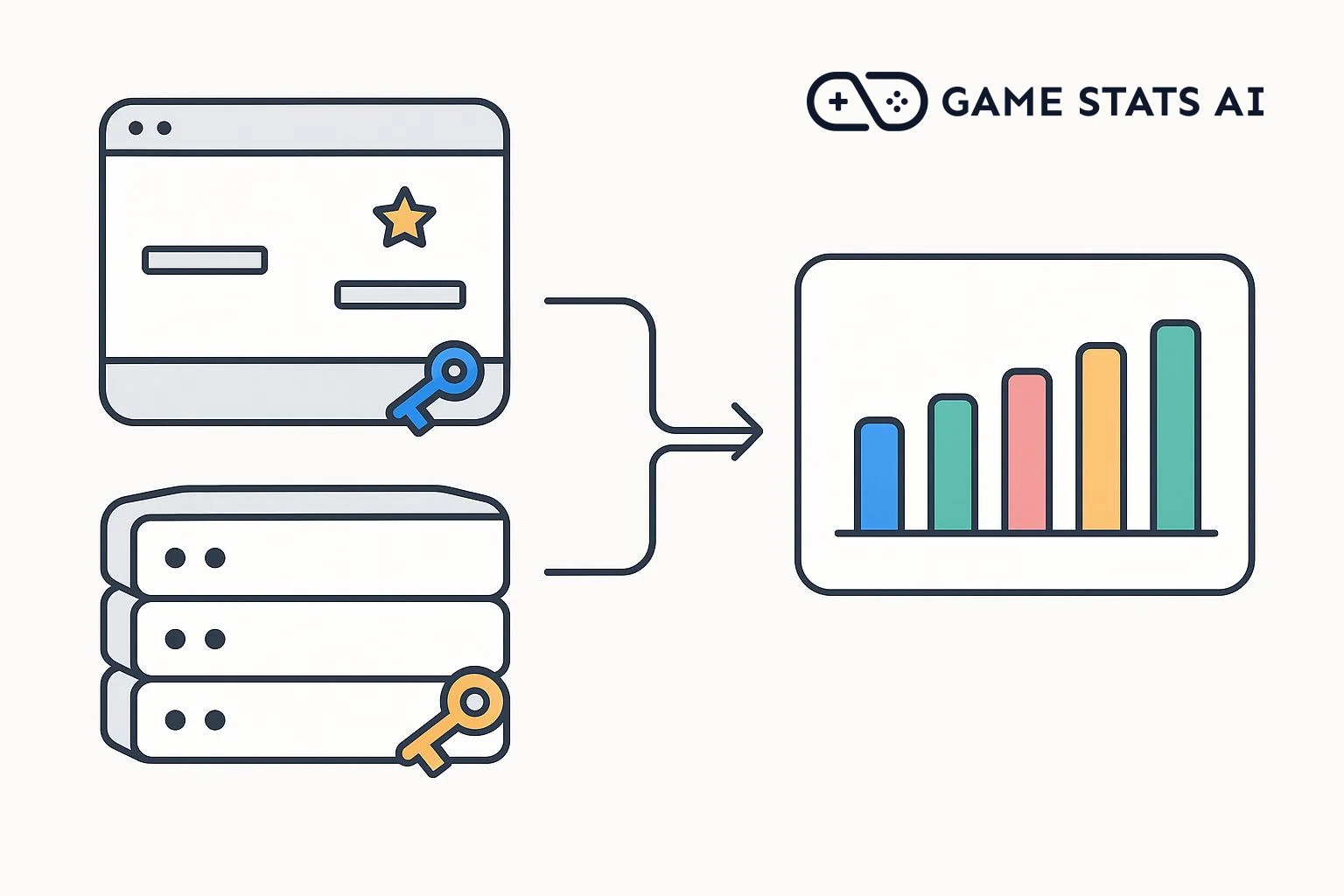
Reading reports requires a server token. A client token can only send telemetry, so the MCP server rejects it. In Settings > API tokens, choose Server
when you create the token.
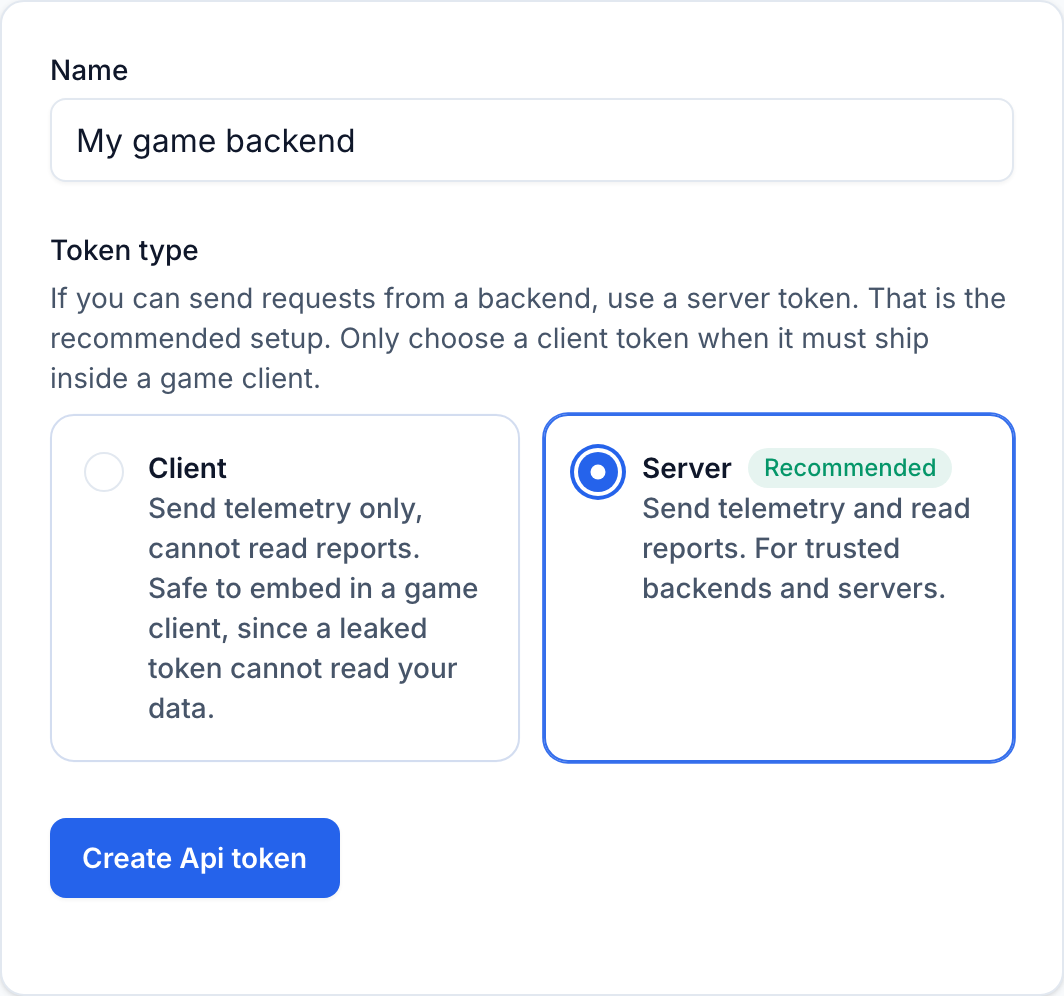
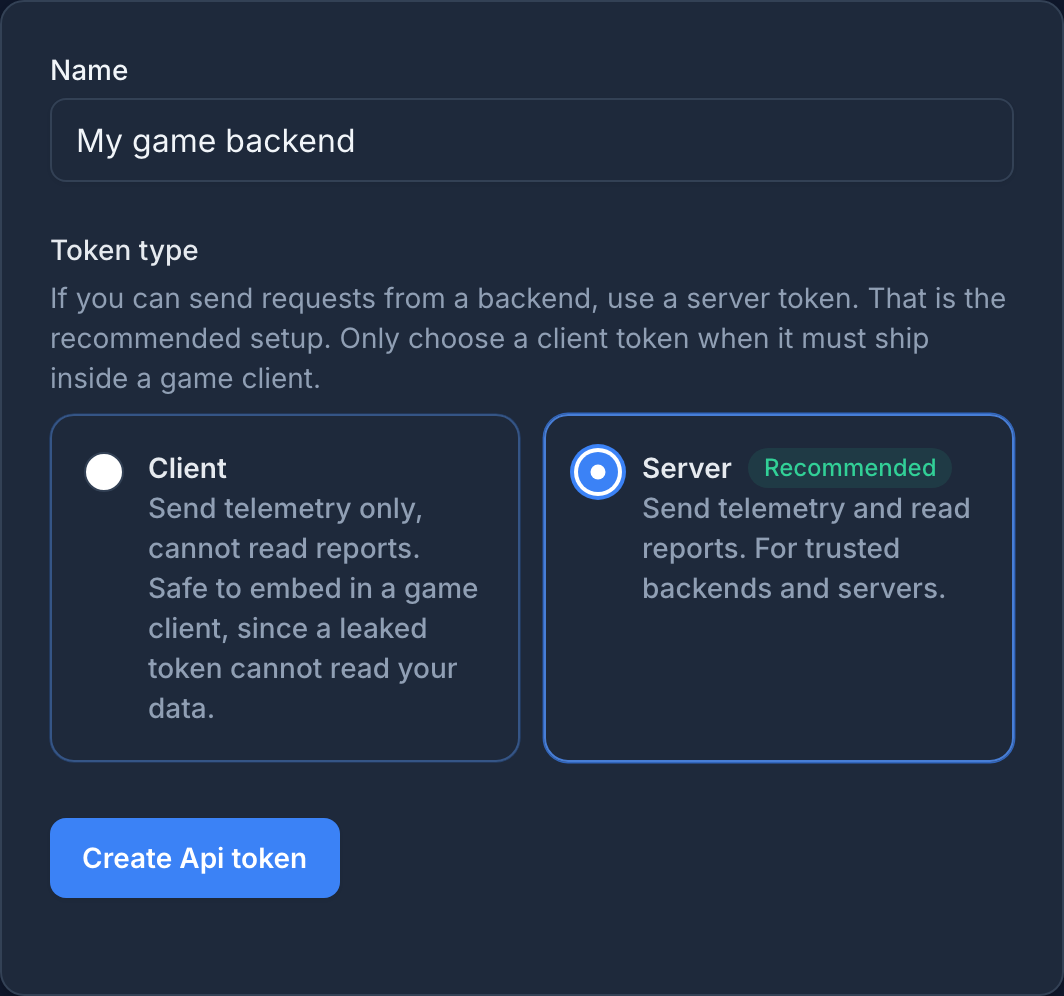
A server token can read every report in your account, so keep it on your own machine and never ship it inside a game build. The token belongs to one account, so Claude can only read that account's reports, and you never need to pass an account id.
Step 2: Add the server to Claude Code
Run this in the project directory where you use Claude Code, with your token in place of YOUR_SERVER_TOKEN:
claude mcp add --transport http game-stats https://gamestats.ai/api/v1/mcp --header "Authorization: Bearer YOUR_SERVER_TOKEN"
Claude Code stores the server and the token in its own configuration, not in your project files, so nothing is added to your repository.
Step 3: Check the connection
List your MCP servers to confirm that Claude Code can reach Game Stats AI:
claude mcp list
The Game Stats AI server should show as connected:
game-stats: https://gamestats.ai/api/v1/mcp (HTTP) - ✔ Connected
Step 4: Ask a question
Ask Claude Code about your game the way you would ask a teammate. In the example game, version 1.1.0 toned down a character named Volt, so we asked:
Did Volt's win rate change between version 1.0.0 and 1.1.0 of our game?
Claude listed the game's versions to find their ids, found the character report, and then read that report twice: once filtered to 1.0.0 and once filtered to 1.1.0. It answered with the numbers from the report:
| Version | Wins | Losses | Win rate |
|---|---|---|---|
| 1.0.0 | 67 | 38 | 63.8% |
| 1.1.0 | 49 | 51 | 49.0% |
It added that Volt had the highest win rate of any character in 1.0.0 and sits near 50% in 1.1.0, in line with the rest of the roster.
Step 5: Ask follow-up questions
Each question can build on the same reports. We asked:
Which character is weakest in our latest version, and how many games is that based on?
Claude read the character report filtered to 1.1.0 and named Gale, with a 45.0% win rate across 100 games (45 wins, 55 losses). It also pointed out that 100 games is a small sample, so the gap from 50% could still be noise, and suggested checking again once there is more 1.1.0 data before changing the character.
What Claude can and cannot do
The MCP server gives Claude the same read-only tools as the in-app assistant. Claude can list and run your reports with filters such as version and date range, look up players, characters, achievements, and versions, and count, break down, or chart raw matches and events over any date range. Results link back to the matching page in Game Stats AI.
It cannot send events, create or edit reports, or change anything in your account. For rates and multi-metric breakdowns, Claude relies on the reports you have already set up, so if no report covers a question, create that report first and then ask again.