How to group card game decks into archetypes
 By Mike Dalton ·
An archetype is a group of decks that share the same defining cards. Two decks can differ in their supporting cards and still play the same way, so comparing archetypes instead of individual decks shows which strategies are strong.
To show what that looks like, we set up an example card game with 12 cards and 600 matches across two versions, 1.0.0 and 1.1.0. Each deck has six cards. Version 1.1.0 lowered the attack of a Legendary card named Ember Dragon from 8 to 6.
Game Stats AI calls cards characters, so cards go to the characters endpoint, and the archetype settings use character filters.
Step 1: Choose a token
Cards and matches can come from your game client or from a match server you run. Use a server token if a server sends them, or a client token if the game client does. Create the token in Settings > API tokens, where you also find your account id.
The examples below use curl with both values in environment variables:
export GAMESTATS_TOKEN=your_api_token
export ACCOUNT_ID=your_account_id
Step 2: Send your cards
Send each card to the characters endpoint with the version it first appears in. The external_id is the id your game uses for the card, name is what the reports display, and character_attributes holds the card's properties:
curl -i -X POST "https://gamestats.ai/api/v1/accounts/$ACCOUNT_ID/characters" \
  -H "Authorization: Bearer $GAMESTATS_TOKEN" \
  -H "Content-Type: application/json" \
  -d '{
    "external_id": "ember_dragon",
    "name": "Ember Dragon",
    "version_name": "1.0.0",
    "character_attributes": {"rarity": "Legendary", "element": "Fire", "attack": 8}
  }'
external_id, name, and version_name are required. Archetypes are built from the attributes, so include the one you want to group by. In the example it is rarity, with the values Common, Rare, Epic, and Legendary.
When a patch changes a card, send that card again with the new version_name. Cards you do not send again keep their attributes from the earlier version. For version 1.1.0, the example sends Ember Dragon again with "attack": 6.
Step 3: Send card images (optional)
The reports show each archetype as its cards' images. To add an image, upload it to the character images endpoint after the card exists:
curl -i -X POST "https://gamestats.ai/api/v1/accounts/$ACCOUNT_ID/character_images" \
  -H "Authorization: Bearer $GAMESTATS_TOKEN" \
  -F "character_external_id=ember_dragon" \
  -F "image=@ember_dragon.png"
A card without an image is shown as the first letter of its name.
Step 4: Send each match
When a match ends, send it to the matches endpoint. Each player gets a win and a loss value of 1 or 0, and one match event for each card in their deck:
curl -i -X POST "https://gamestats.ai/api/v1/accounts/$ACCOUNT_ID/matches" \
  -H "Authorization: Bearer $GAMESTATS_TOKEN" \
  -H "Content-Type: application/json" \
  -d '{
    "external_id": "match_110_42",
    "version_name": "1.1.0",
    "match_at": "2026-10-04T18:20:00Z",
    "match_players": [
      {
        "username": "player_3e8",
        "match_attributes": {"win": 1, "loss": 0},
        "match_events": [
          {"character_external_id": "ember_dragon", "event_type_name": "in_deck"},
          {"character_external_id": "flame_imp", "event_type_name": "in_deck"},
          {"character_external_id": "spark_beetle", "event_type_name": "in_deck"},
          {"character_external_id": "moss_troll", "event_type_name": "in_deck"},
          {"character_external_id": "pebble_crab", "event_type_name": "in_deck"},
          {"character_external_id": "gust_hawk", "event_type_name": "in_deck"}
        ]
      },
      {
        "username": "player_40d",
        "match_attributes": {"win": 0, "loss": 1},
        "match_events": [
          {"character_external_id": "tide_serpent", "event_type_name": "in_deck"},
          {"character_external_id": "storm_caller", "event_type_name": "in_deck"},
          {"character_external_id": "river_sprite", "event_type_name": "in_deck"},
          {"character_external_id": "mist_frog", "event_type_name": "in_deck"},
          {"character_external_id": "gust_hawk", "event_type_name": "in_deck"},
          {"character_external_id": "breeze_moth", "event_type_name": "in_deck"}
        ]
      }
    ]
  }'
A 201 response means the match was accepted. Players, versions, and event types are created on first use. The external_id identifies the match, so sending the same match again updates it instead of counting it twice.
Each player's match events become that player's deck for the match.
Step 5: Choose which cards define an archetype
Turn on the Archetypes module in Settings > Game modules. Then open Settings > Archetype Configurations, select New, check Active, and select Add character filter. Pick the attribute and the values that make a card a defining card. The example uses rarity with Epic and Legendary:
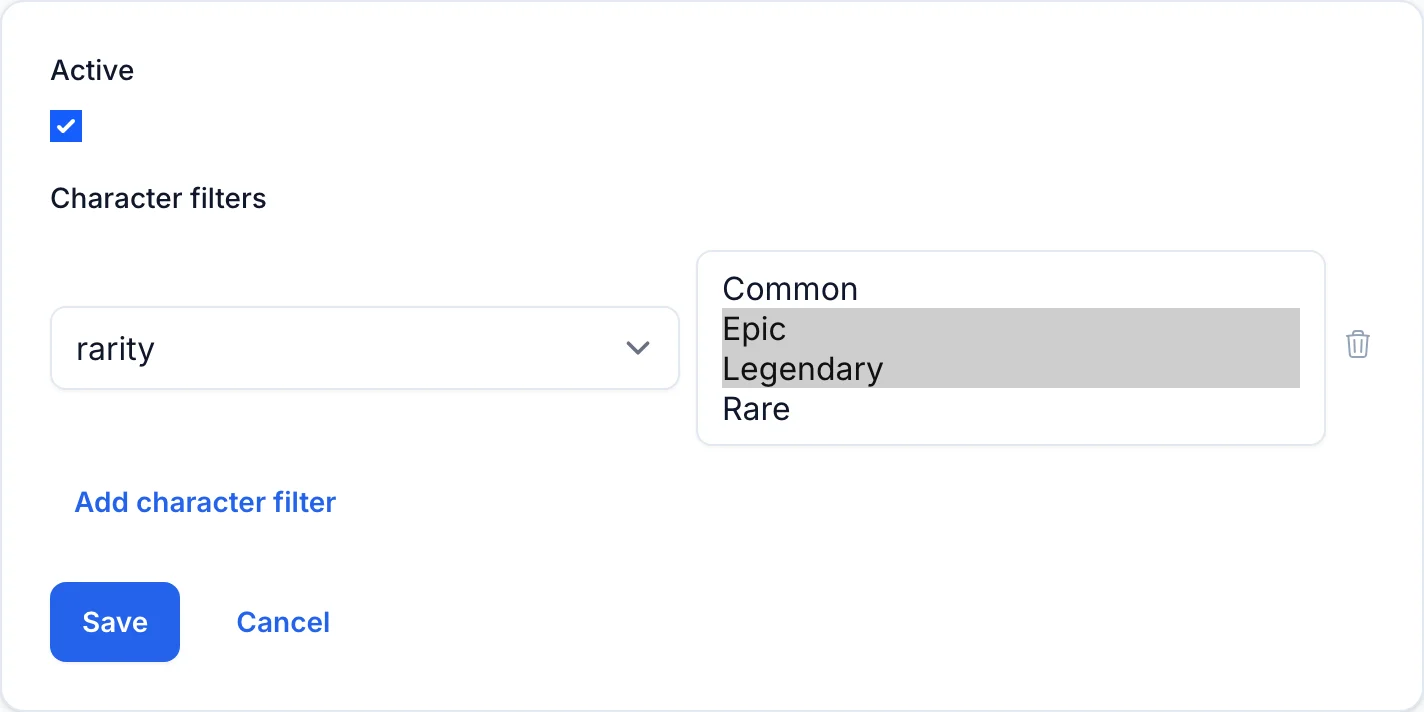
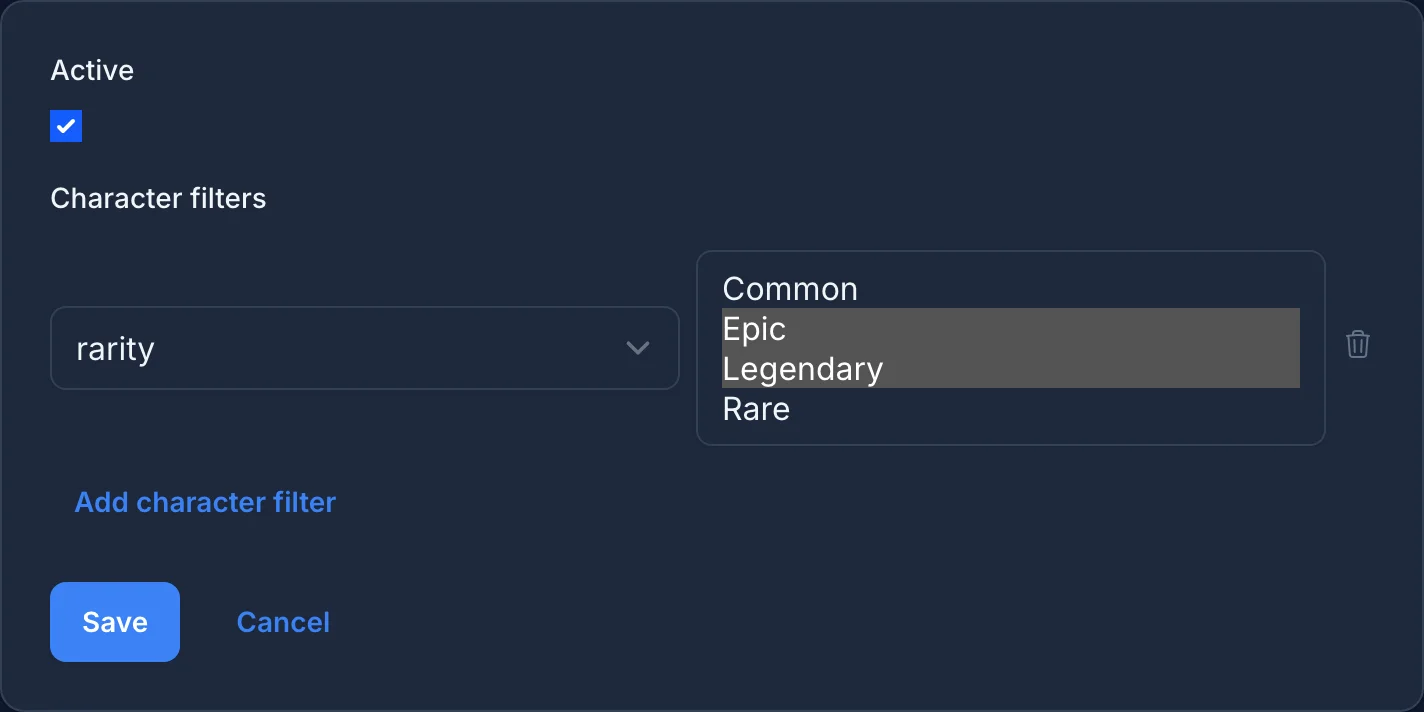
A deck's archetype is the set of its cards that match the filters. With this filter:
- A deck with Ember Dragon and no other Epic or Legendary card belongs to the Ember Dragon archetype.
- A deck with Ember Dragon and Stone Golem, an Epic card, belongs to a separate Ember Dragon and Stone Golem archetype.
- A deck with only Common and Rare cards is grouped under
No defining characters
.
When you add more than one filter, a card has to match every filter to count. Within one filter, matching any of the selected values is enough.
Attributes are read at each match's version. If a patch changes a card's rarity, decks from that version can belong to a different archetype than they did before.
Saving the configuration groups the decks from matches you already sent, and new matches are grouped as they arrive. Grouping runs in the background, so the archetypes can take a few minutes to appear. Changing the filters later groups every deck again, at most once every 10 minutes.
Step 6: Build an archetype report
In Reports > New report, choose Archetype report, give it a label, and add three match metrics:
| Metric type | Attribute | Label | Number format |
|---|---|---|---|
| Average | win | Win Rate | Percentage |
| Sum | win | Wins | Unformatted |
| Sum | loss | Losses | Unformatted |
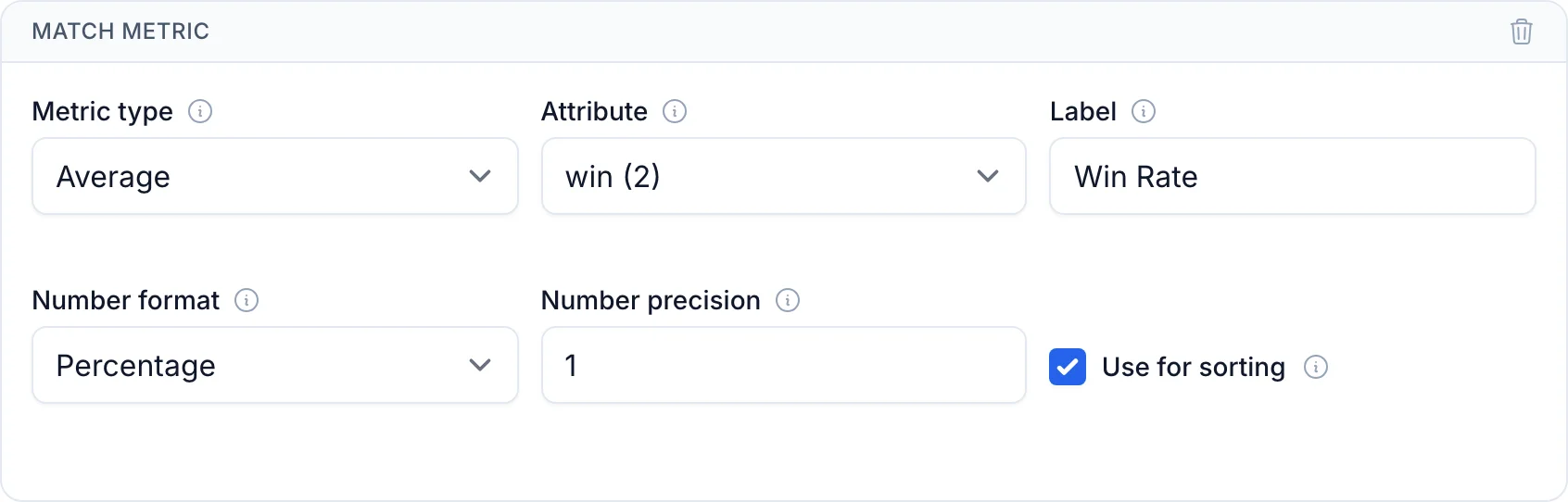
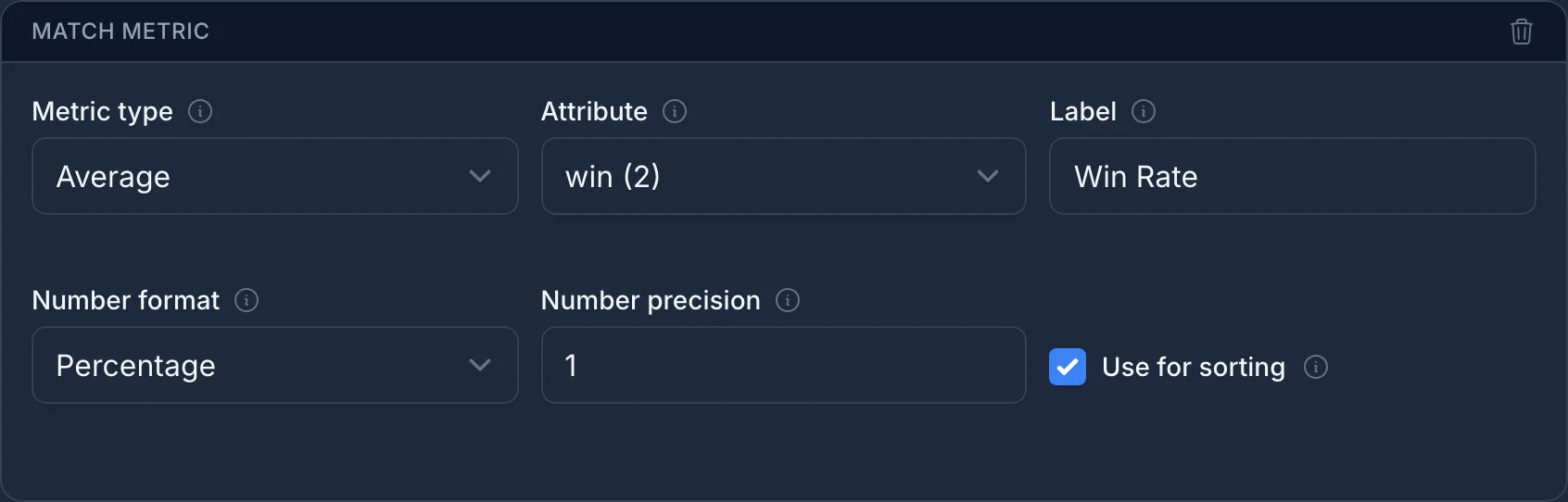
Add Win Rate first: the report's chart plots the first metric. Set its number precision to 1 to show one decimal place, and check Use for sorting to list the archetypes from the highest win rate to the lowest.
Step 7: Compare the two versions
The report opens filtered to your latest version, and every value shows how much it changed from the version before it:
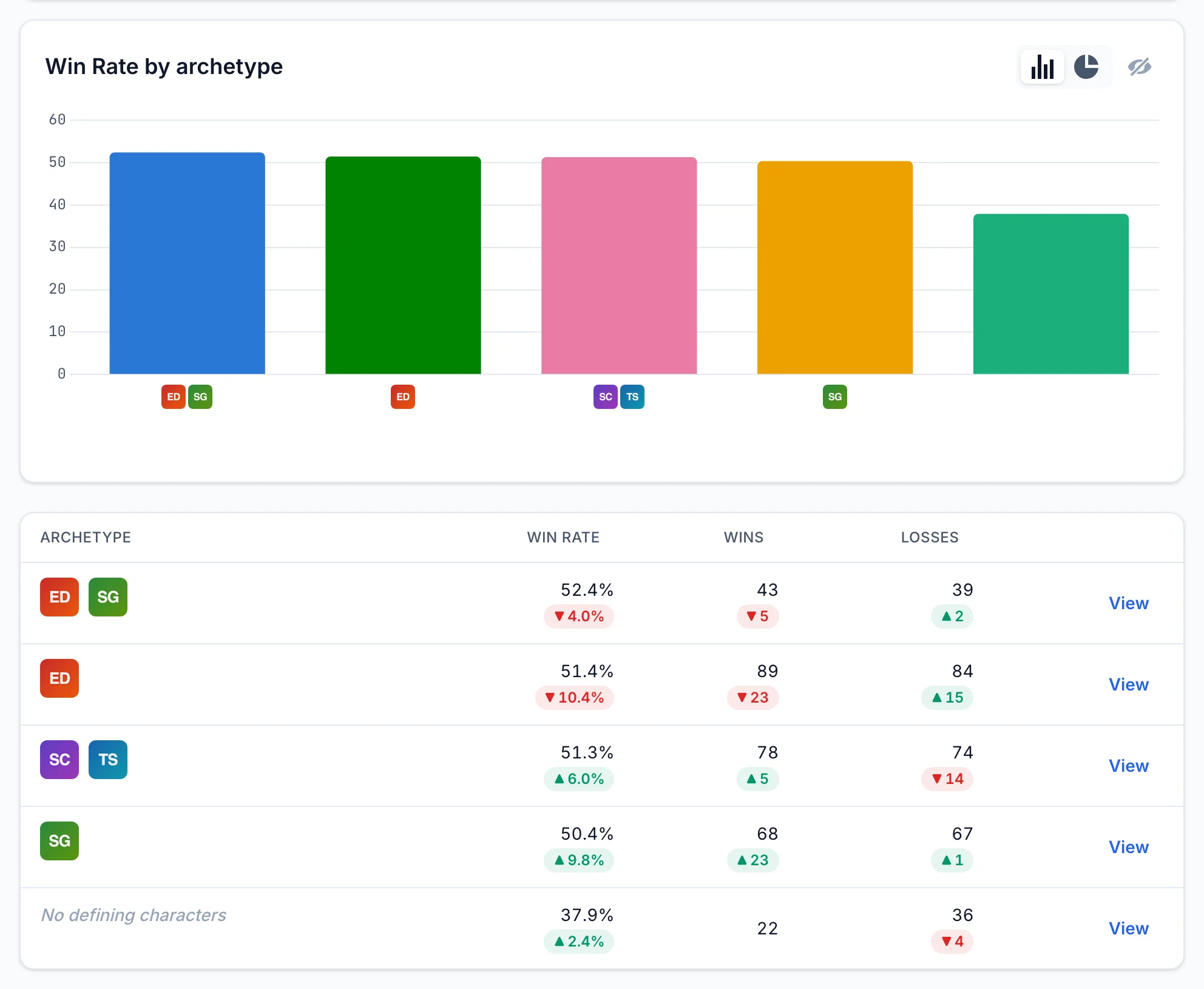
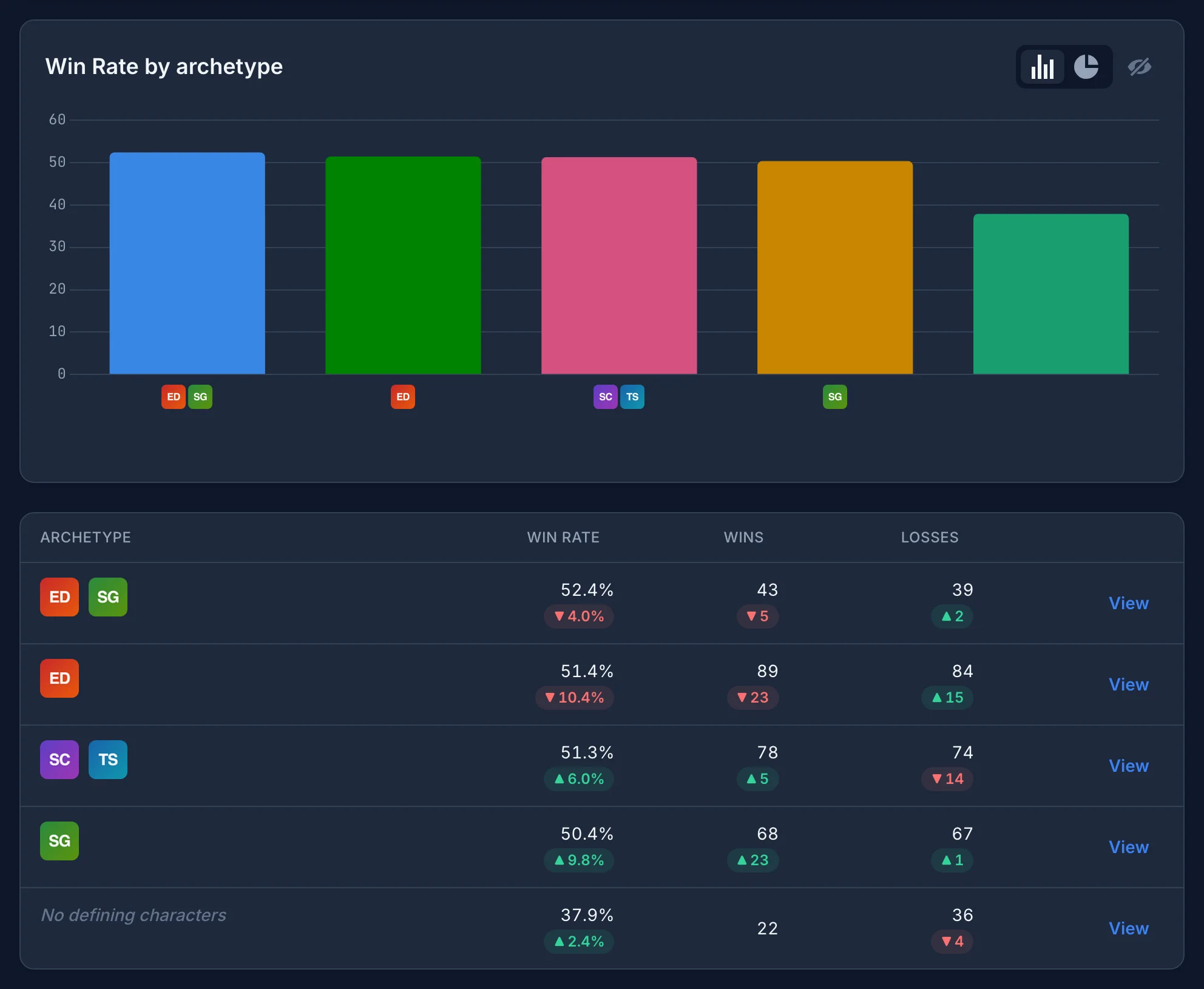
In the example game, the archetypes are much closer in 1.1.0:
| Archetype | 1.0.0 | 1.1.0 |
|---|---|---|
| Ember Dragon | 61.9% | 51.4% |
| Ember Dragon and Stone Golem | 56.5% | 52.4% |
| Tide Serpent and Storm Caller | 45.3% | 51.3% |
| Stone Golem | 40.5% | 50.4% |
| No defining characters | 35.5% | 37.9% |
Ember Dragon decks dropped 10.4 points and are no longer at the top of the report. Decks with both Ember Dragon and Stone Golem dropped 4.0 points. Stone Golem decks gained the most, 9.8 points, and every archetype with defining cards is now between 50% and 53%.
To look at an older version, pick it in the filters, and the report compares it with the version before it, if there is one. Select more than one version to see them combined, without the change values.
If you track individual characters instead of decks, How to track character win rates in a fighting game builds the same kind of report for each character.